
ILG Database "A" or "B" Import into DBF Manager Software
You can simply use ILG dBASE files with this Viewer Software along with various index funcions, data field selection and filter options
This ILG Database gives a lot of details which cannot be displayed within theWPLOT software where some helpful information are completely lost due to lack of space.
That's why I recommend the DBF Manager and so I do not need to invent the wheel new again by creating my own ILG reader software.
Download the dBASE reader software "DBF Manager" (trial version) here:
LINK:
https://dbfmanager.com/de/download/
Software Information:
LINK:
https://dbfmanager.com/en/
USAGE DBF MANGER WITH ILG DATABASE:
1.
Create a directory for the ILG file ("A" Version) in dBASE Format, e.g idb1914a.dbf
2.
start the DBF Manger and click "File" and "Open" and select the ILG file
3.
Check the letter type:
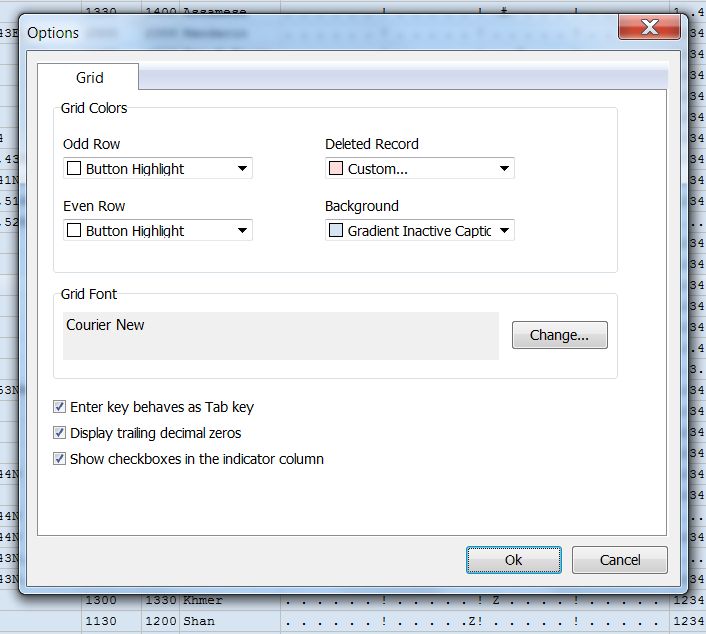
click "Tools" and "Options"
in Grid Font the "Courier New" must be selected. The background color can also be selcted here.
3.
You see now the ILG database with all the data fields.
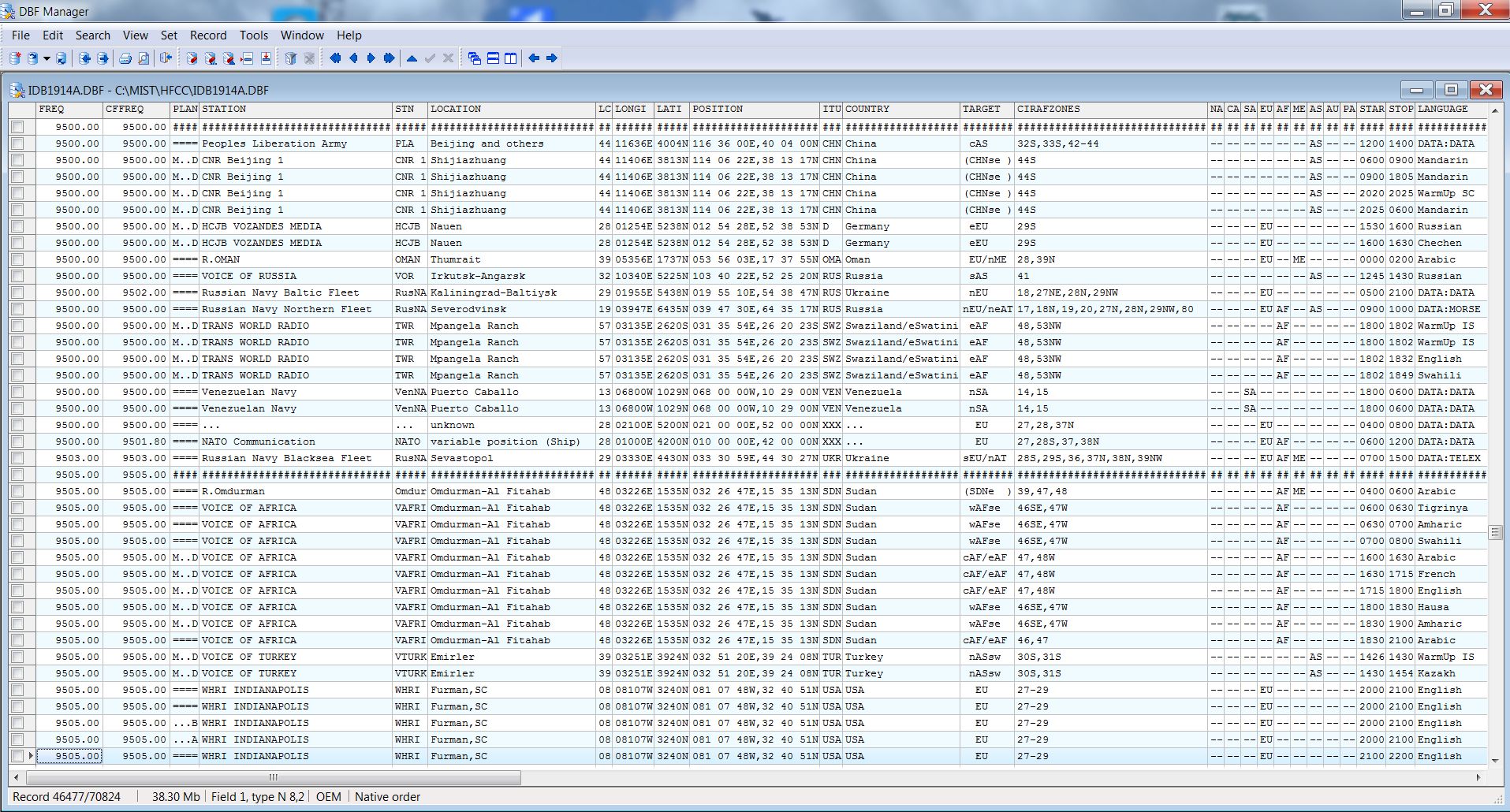
click picture for zoom view
Various fields are not important for you and therefore you can
suppress the display of selected fields
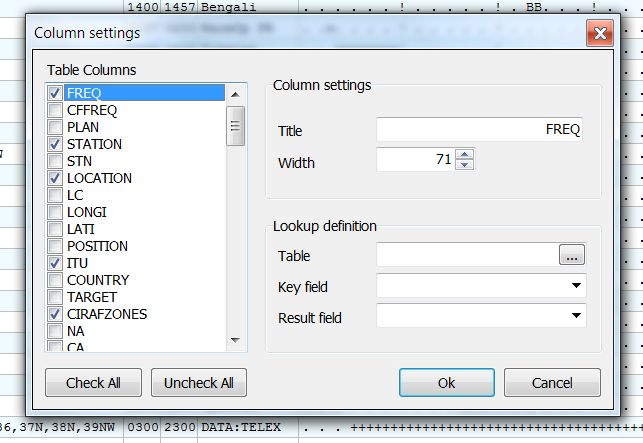
Go to "Tools" and "Columns Settings".
In the window "Table Columns" mark out those fields you do not want to see. If software will start later this selection remains!
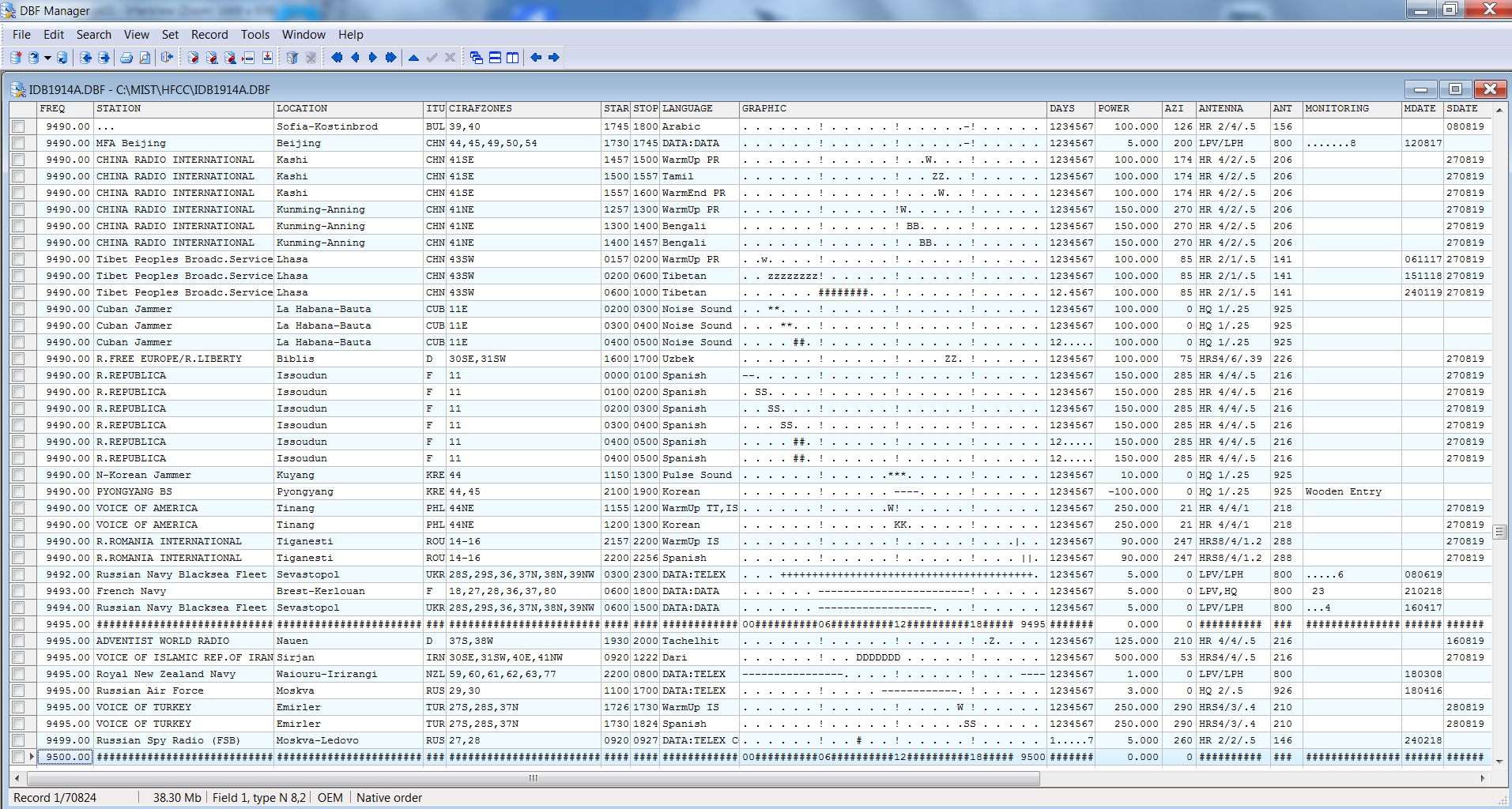
click picture for zoom view
To change selection of fields click in "Table Colums" the button "Check All" and start the selection new again.
You can also change the size of the column or you can move as it is
known in the Microsoft EXCEL software.
4.
If you click the name of the column starting with "Freq" ...
you can set the index, e.g. Location etc.
5.
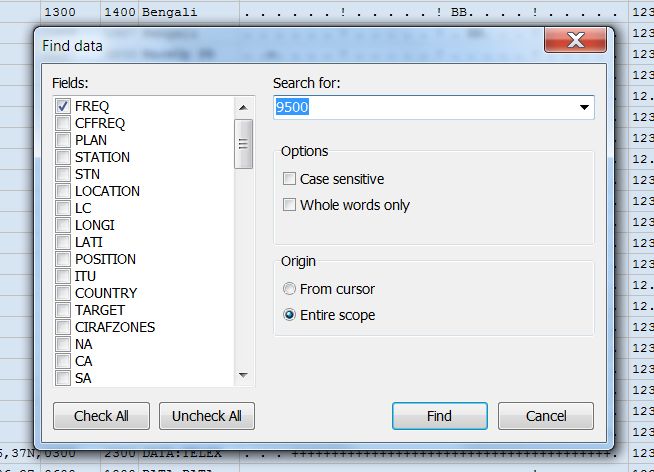
If you want to go to e.g. 9500 khz click on "Search" on the top.
In window "Find data" mark "FREQ" and give "9500".
Verify with "FIND". Now you have the 9500 khz range and you can
scroll up and down.
6.
You see the whole 24 hour range which may give too much data on
the screen.
Click on Top "Set" and "set Filter On".
In the window click the line "Click here to add condition".
Click the name "Freq" and a new window opens.
You want to see only transmissions on air between 1700-1800 UTC.
Select e.g. "G17".
Click on "contains" and select "does not contain"
Click on "<?>" and put in here ". " (dot and blank) and
select "Auto Update" and the green arrow.
Verify with "OK"
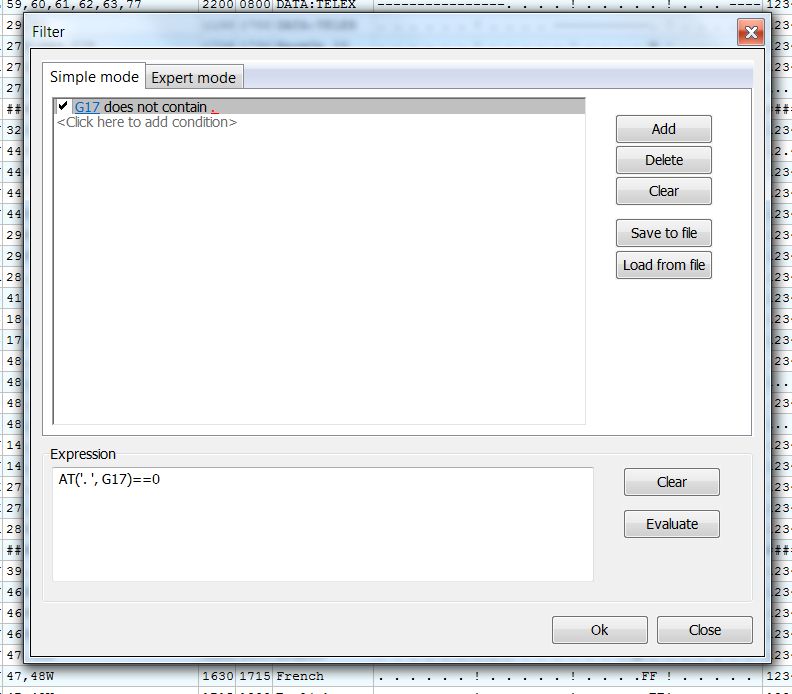
It is only possible to set a proper filer to one hour
using the fields G00 (0000-0100 UTC) ... G23 (2300-2400 UTC).
Now you can see all selected data ...
7.
Special data fields for Geographic Coordination.
In the field GC you can find the exact transmitter site position with the coordinates, compatible to Google Earth or Google Maps.
In LONGI and LATI fields data are give in approx.ITU format with further details.
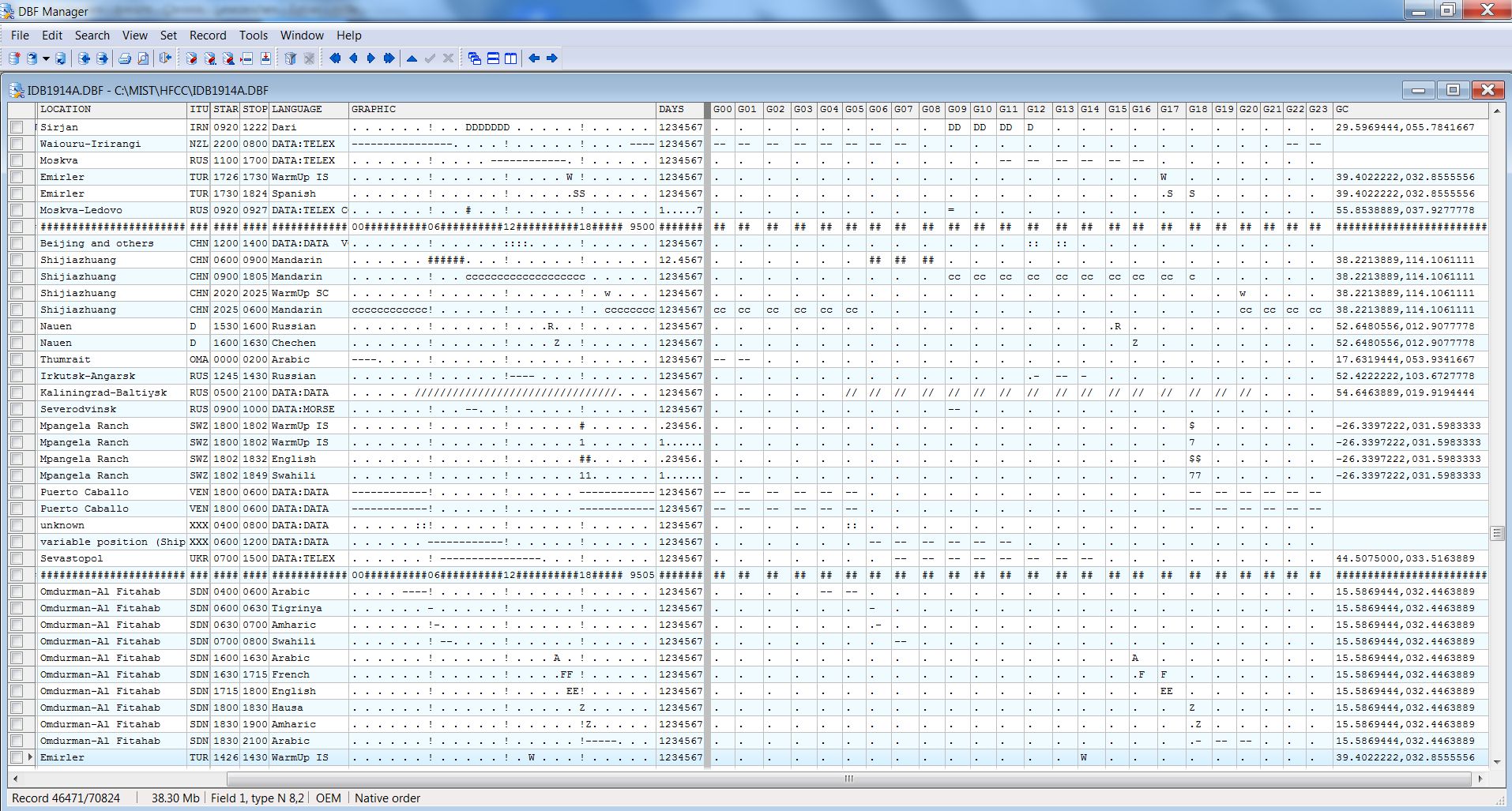
click picture for zoom view
Here you can see the filter of the transmitter site schedule (HFCC Requirements) in frequency order with a selection of data fields:
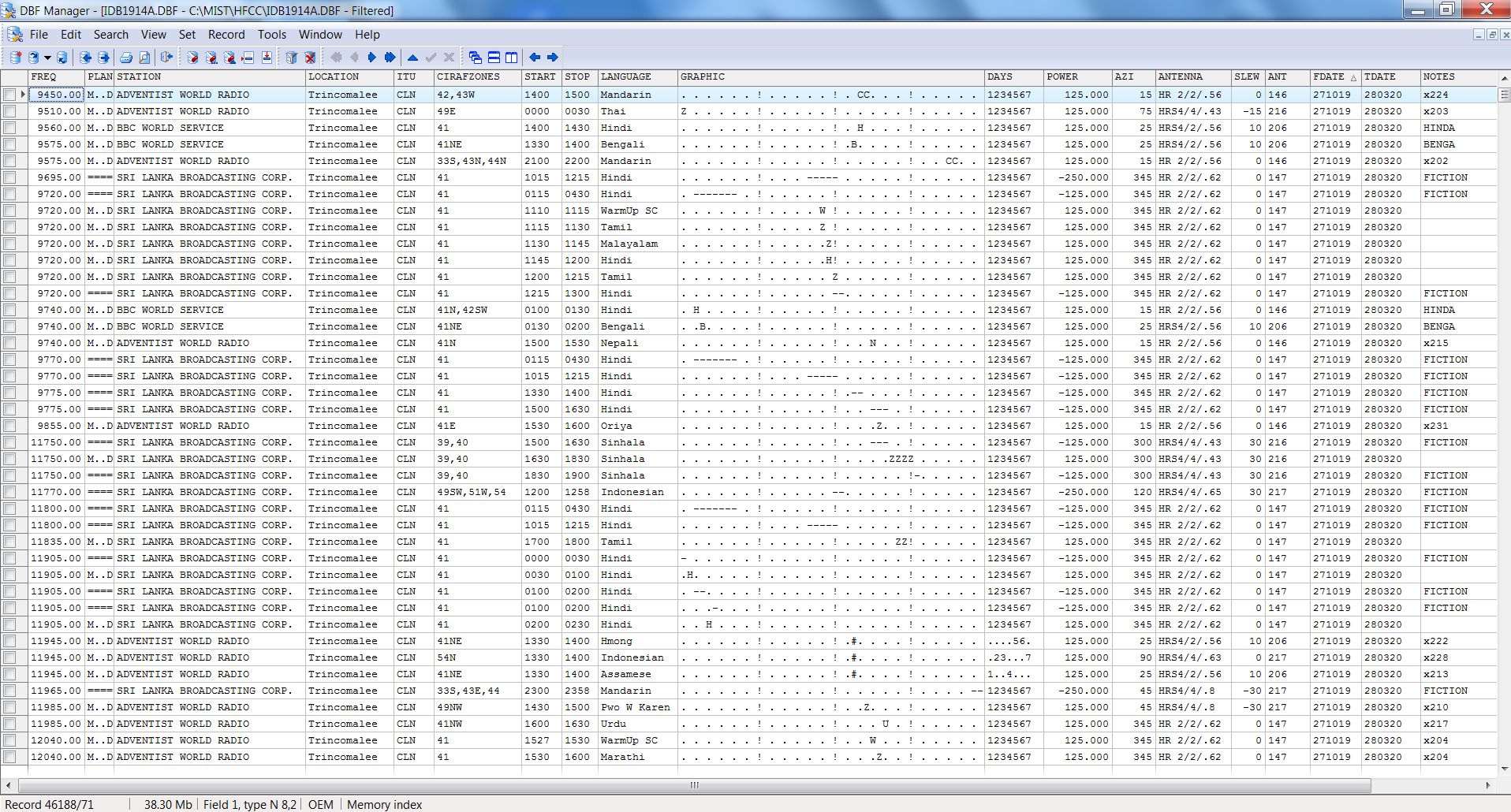
click picture for zoom view
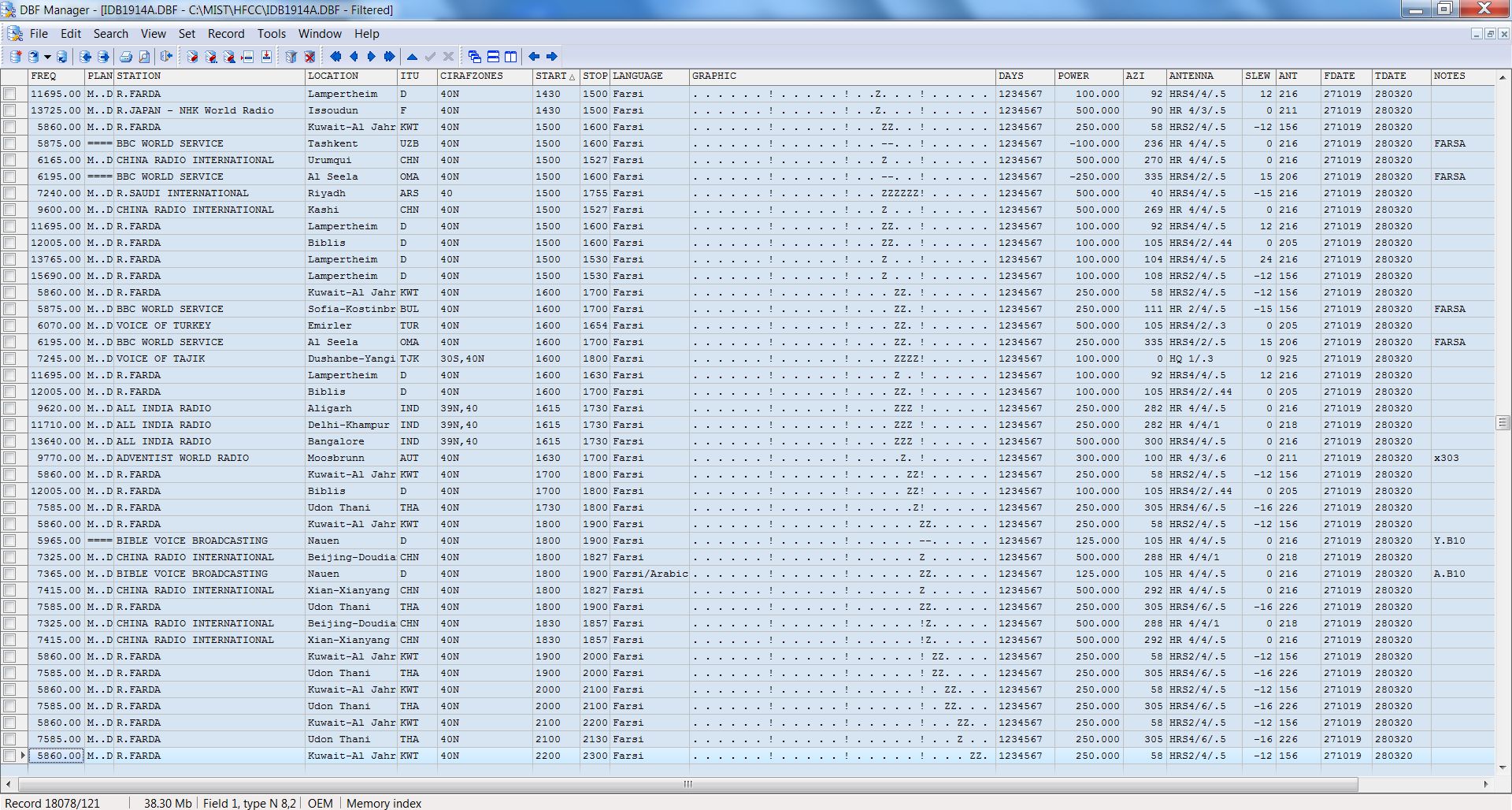
Here you can see the language filter function with FARSI language schedules (HFCC Requirements) in UTC time order (extract) with a selection of data fields:
click picture for zoom view
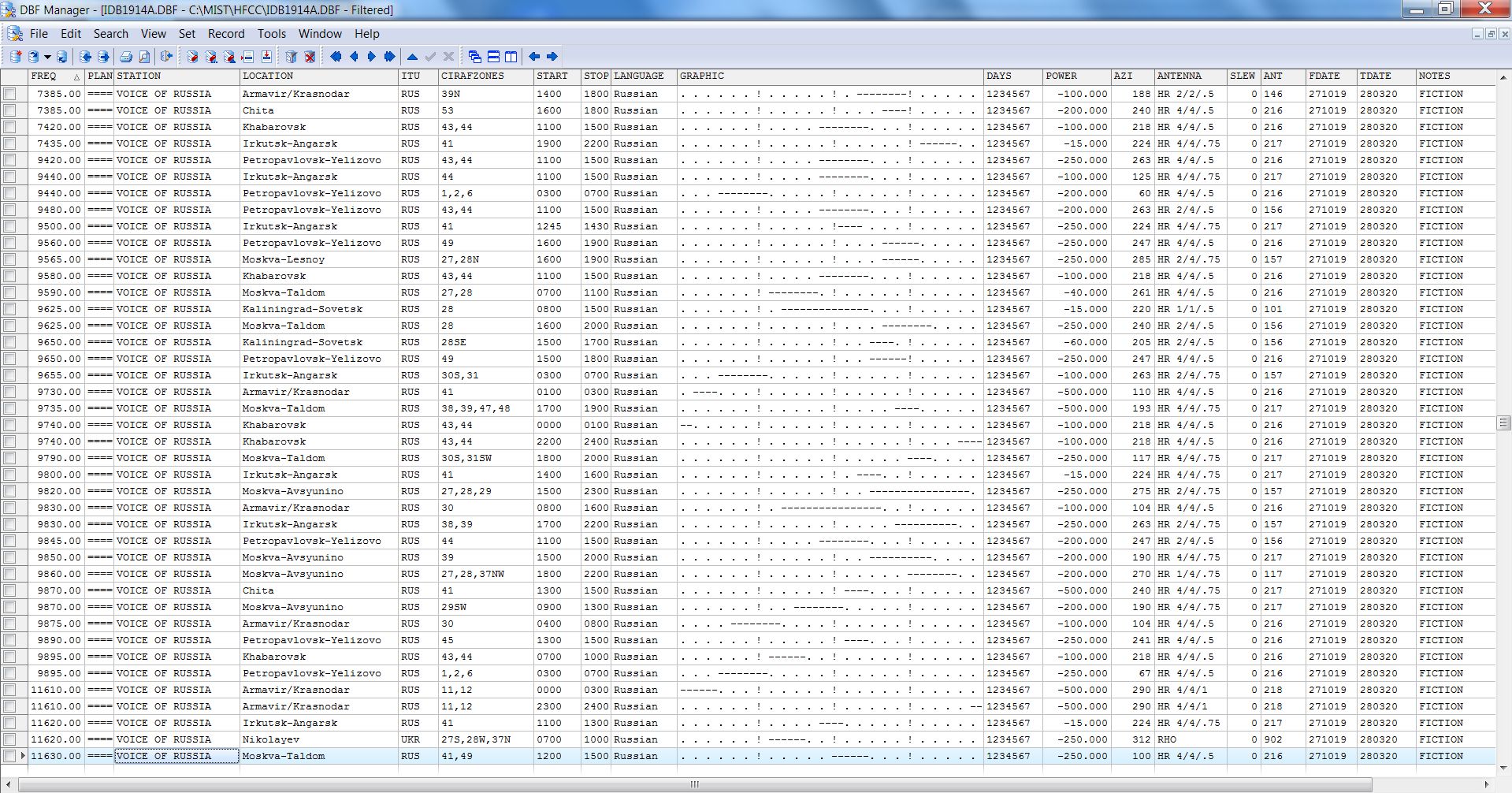
Here is the filter of FMO (GFC - Russia) were you can see on right side column the ILG comment showing that all these requirements will not be on air for this co-ordinated season ...
The transmitter power is given with minus value (e.g. "-250.00") to display these entries in different "warning" colour in the WPLOT software.
click picture for zoom view
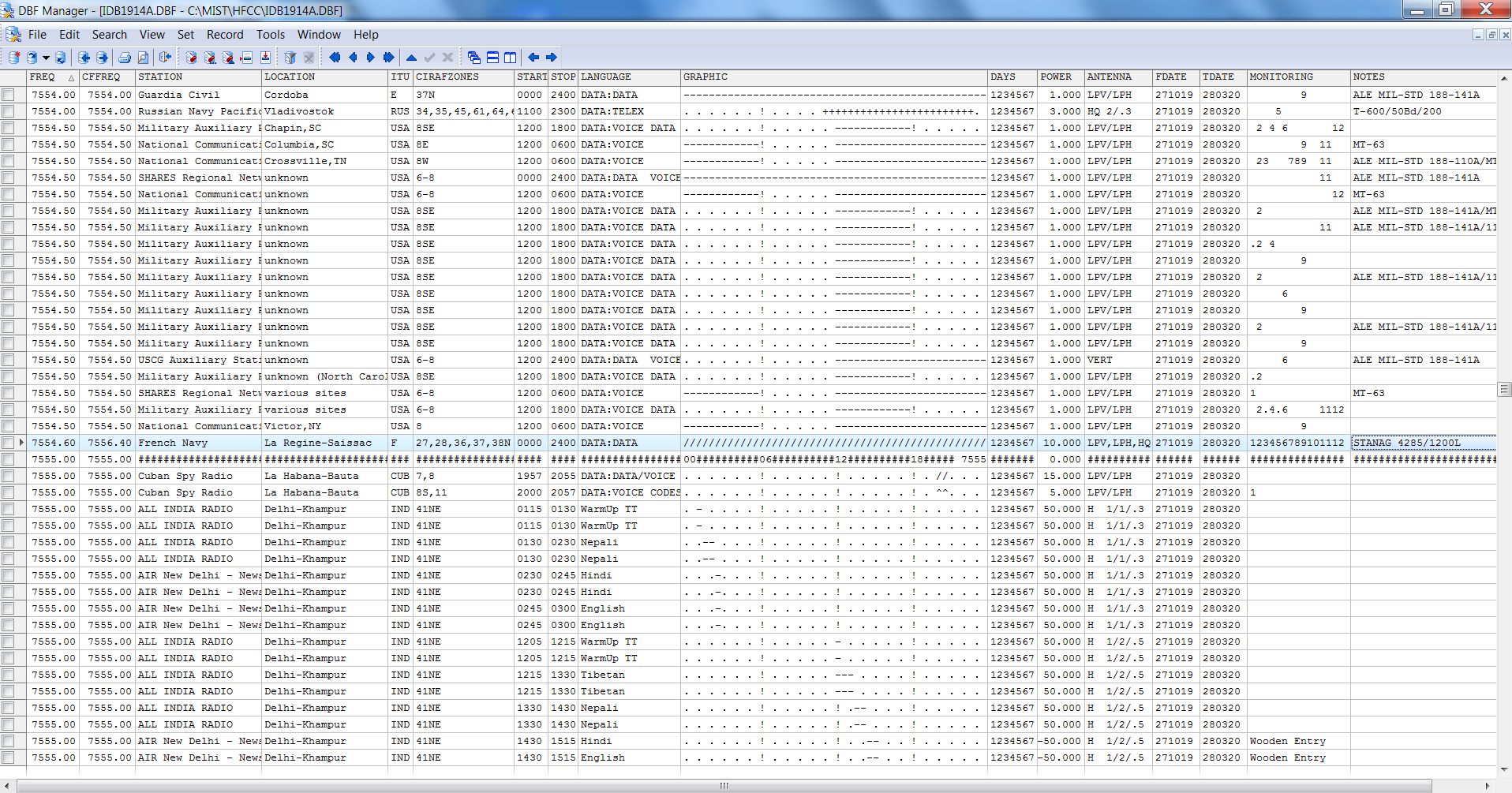
In various cases a special investigation is necessary, if you may have a collision with an UTILITY station.
Here is an example.
Frequency: 7554.6 (carrier)
Center Frequency: 7556.4 KHz
Origin: French Navy
Type:STANAG 4285/1200L (digital NATO signal) LINK: SIGIDWIKI.COM for details and Audio Files
In the Monitoring Column on the right side you see the data field content "123456789101112" which means that this signal is on air the whole year (1 = January .. 12 = December). All UTILITY entries in ILG database are given with the monitoring month !
CONCLUSION: the frequency of 7555 Khz cannot be use in Europe, West-Africa, Middle East due to high intererences although the power is only 10 kW !
click picture for zoom view
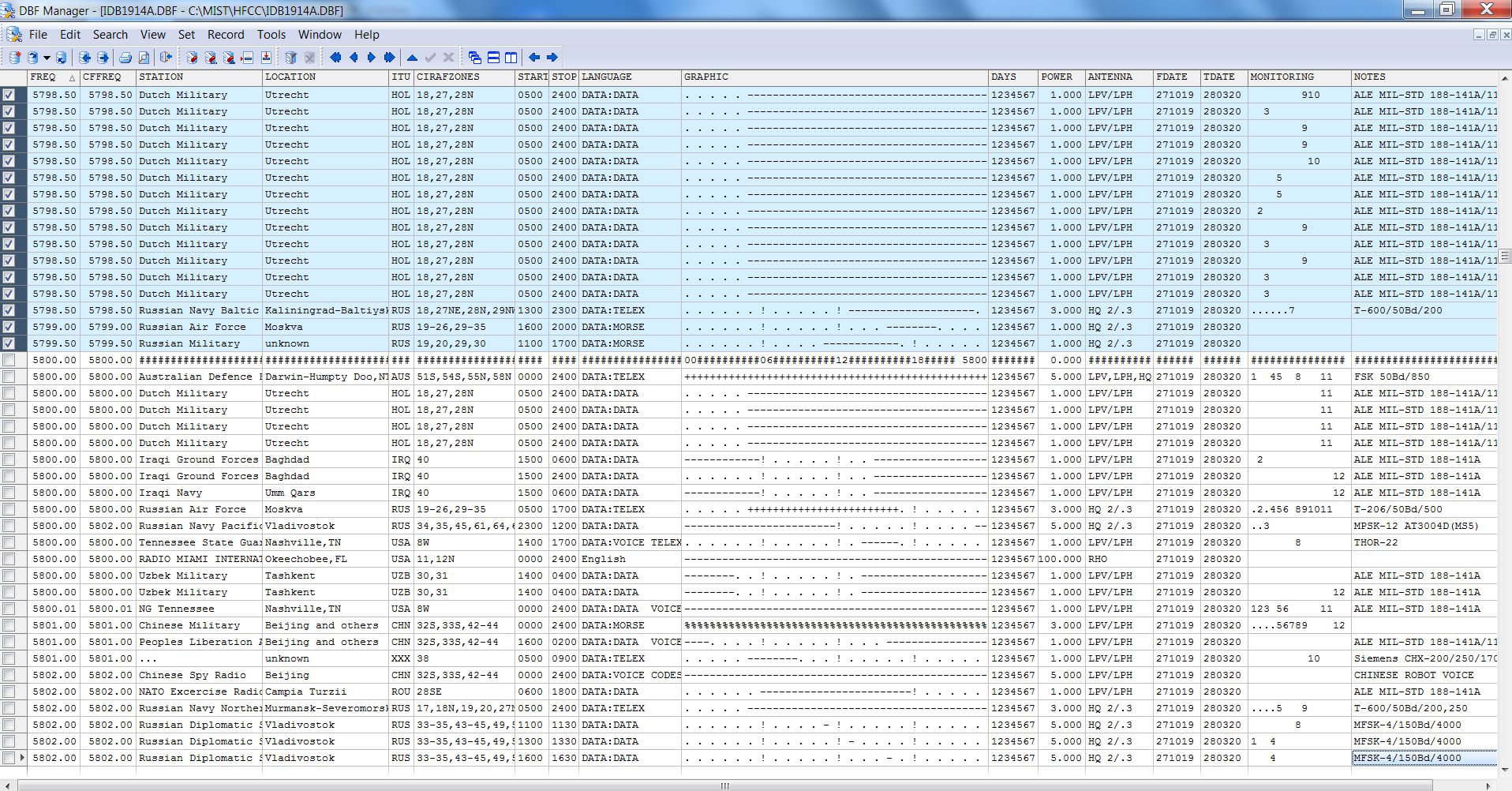
In the case you do not wish to work with frequencies e.g. lower than 5800 khz you can select data sets to delete:
Mark one data set in the first column and the other end of the selected range with SHIFT and the mouse click.
Click on "Edit" and "Cut" and verify with "OK"
Than go to "Edit" and click "Pack" and again "OK"
ATTENTION here in "Edit" the selection "Zap" means to delet all data sets !!!
click picture for zoom view
There are a lot of further functions you can test out.
- Edit Function
- Replace Function
- Import and Export Function
- Printing
- Printing Pre-View
- Skip, Go to first record or last record function
- Background Color
In the free software version (trial version) some functions are limited.
Full version with license is available for 49.95 Euro
If you have made further tips or comments please let me know
Have a fun with this software.